







































How to Close All Tabs in Chrome at Once
Close every Chrome tab at once on Windows, Mac, Chromebook, Android, iPhone and iPad, keep the tabs you need, and get them back if you close too many.
To close all tabs in Chrome at once, press Ctrl+Shift+W (Mac: Command+Shift+W): every tab in the current window closes. To close all windows, choose Exit in the Chrome menu (Mac: Command+Q). On a phone, open the tab switcher and tap Close all tabs (Android) or Close All (iPhone).
- Click any tab in the Chrome window you want to clear.
- Press Ctrl+Shift+W (Mac: Command+Shift+W). Every tab in that window closes, and the window closes with them.
- If other Chrome windows are still open, repeat in each one, or close them all together: click the three-dot menu at the top right and choose Exit (Mac: press Command+Q).
- Closed too much? Press Ctrl+Shift+T (Mac: Command+Shift+T) straight away to reopen what you just closed.
Chrome menu names in this guide were checked in Chrome 156 (November 2026). Shortcuts and phone steps follow Google's current Chrome Help pages, including the Chrome keyboard shortcuts list.
Keyboard shortcuts to close all tabs in Chrome
Ctrl+Shift+W clears one window at a time, and the quit shortcut closes all of them:
- Windows and Linux: Ctrl+W closes the current tab, Ctrl+Shift+W or Alt+F4 closes the current window with all its tabs, and Alt+F then X quits Chrome, which closes every window.
- Mac: Command+W closes the current tab, Command+Shift+W closes the current window, and Command+Q quits Chrome.
- Chromebook: Ctrl+W closes the current tab and Ctrl+Shift+W closes the current window.
- Every computer: Ctrl+Shift+T (Mac: Command+Shift+T) reopens closed tabs in the order they were closed, and Ctrl+Shift+D (Mac: Command+Shift+D) saves the window's open tabs as bookmarks in a new folder.
How to close all tabs in Chrome on Windows
On Windows 11 or Windows 10, press Ctrl+Shift+W to close every tab in the window you're using. Clicking the X at the top right of the window does the same.
To close all Chrome windows in one go, quit Chrome:
- Click the three-dot menu at the top right of any Chrome window.
- Choose Exit. Every window and tab closes.
The keyboard version is Alt+F, then X. If you might need those pages later, save them first (see below).
How to close all tabs in Chrome on a Mac
On a Mac, press Command+Shift+W to close the current window and all its tabs, or click the Close button at the top left of the window. To close every window, press Command+Q, or click Chrome in the menu bar and choose Quit Google Chrome.
Everything else in this guide works the same on a Mac: use Command where Windows uses Ctrl.
How to close all tabs on a Chromebook
On a Chromebook, press Ctrl+Shift+W to close the current Chrome window and every tab in it, or select Close at the top right of the window. If several Chrome windows are open, do this in each one.
- To find every open window, press the Show windows key.
- If you use desks, press Show windows, then select Close desk and windows at the top right of a desk. That desk and all its windows close at once.
- Signing out (Shift+Ctrl+Q twice) closes everything, including other apps.
Ctrl+Shift+T reopens the last tab or window you closed.
How to close all tabs except one in Chrome
Right-click the tab you want to keep and choose Close other tabs. Chrome closes the other tabs in that window and leaves the one you clicked.
- Close tabs to the right, in the same menu, closes only the tabs to the right of the one you clicked. If you show your tabs vertically, the same option is called Close tabs below.
- Pinned tabs stay open with both options. To get rid of a pinned tab too, right-click it, choose Unpin, then close it as usual.
- To keep several tabs, highlight them first (see the next section), right-click one of them and choose Close other tabs. Every highlighted tab stays open.
How to close multiple tabs in Chrome at once
Highlight the tabs, then close them together:
- Hold Ctrl (Mac: Command) and click each tab you want to close. To pick a run of tabs side by side, click the first one, hold Shift and click the last.
- Right-click any of the highlighted tabs.
- Choose Close.
Without a mouse, Google's keyboard route is F6 twice, then Ctrl+Shift+H. A collapsed tab group can only be selected as a whole, so expand it first to pick single tabs inside it.
How to close tab groups in Chrome
Right-click the group's name or colored circle in the tab strip and choose Close group. Its tabs close, but the group isn't deleted: you can open it again from the three-dot menu under Tab groups, or from the bookmarks bar if you show groups there.
- Delete group removes the group for good, on this computer and on every device signed in to the same Google Account.
- Ungroup leaves the tabs open but deletes the group, also on your other devices (see Google's tab help for computers).
How to close all tabs in Chrome on Android
Open the tab switcher, then use its menu. This works the same on Android phones and tablets:
- Open Chrome and tap Switch tabs (the square with your tab count) to the right of the address bar.
- Tap More (three dots).
- Tap Close all tabs. If Chrome asks you to confirm, tap Close all tabs and groups.
- To close only some tabs, tap More > Select tabs in the tab switcher, pick the tabs, then tap More > Close tabs. You can also swipe a single tab away.
- Incognito tabs have their own list. In the tab switcher, tap Incognito tabs at the top, then More > Close all Incognito tabs.
- Tabs you haven't used for 14 days or more move to the Inactive tabs section. Clear them with Close all inactive tabs > Close all.
A closed tab group is saved, not deleted: reopen it from Tab groups in the tab switcher (Google's Android tab help).
How to close all tabs in Chrome on iPhone and iPad
On an iPhone, tap Switch tabs at the bottom of the screen, then tap Close All at the bottom left.
- On an iPad, tap Switch tabs, then More at the top right and choose Close All Tabs and Groups, as Google's help names it. It closes your tab groups as well, and the same option is on the iPhone.
- To close extra Chrome windows on an iPad, touch and hold the Chrome icon, choose Show All Windows and swipe each window up.
- Incognito tabs are separate. In the tab switcher, tap the Incognito icon at the top, then Edit > Close All Tabs.
- Pinned tabs sit at the bottom of the tab switcher on an iPhone. To close one, touch and hold it and choose Close Tab.
More options are in Google's iPhone and iPad tab help.
How to save all tabs in Chrome before closing them
Bookmark them in one step. Press Ctrl+Shift+D (Mac: Command+Shift+D), or open the three-dot menu and choose Bookmarks and lists > Bookmark all tabs…. Name the folder and click Save.
- It saves the tabs of the current window only, so repeat it in each window you want to keep.
- To reopen them later, right-click the folder in the bookmarks bar and choose Open all. Chrome shows the number of pages next to it.
- Another way is a tab group: put the tabs in a group, then right-click the group and choose Close group. It waits under Tab groups in the three-dot menu until you need it.
- On Android, tap Switch tabs > More > Select tabs, pick the tabs, then tap More > Bookmark tabs.
To have Chrome reopen the pages that were open when you quit, choose Settings > On startup > Continue where you left off.
How to get your tabs back after closing them
Press Ctrl+Shift+T (Mac: Command+Shift+T) right away. Chrome reopens closed tabs in the order they were closed, and if you closed a whole window, the window comes back with its tabs.
- After you quit Chrome, open it again, click the three-dot menu and point to History. Under Recently closed, point to the entry that shows the number of tabs and choose Restore window.
- Older pages are in your full history: Ctrl+H (Mac: Command+Y).
- On Android and iPhone, an Undo button appears at the bottom of the screen for a few seconds after you close tabs. After that, find the pages under More > History.
Incognito pages can't be brought back once you close all Incognito windows, because Chrome doesn't keep a record of the sites you visited in Incognito.
How to close all tabs in Chrome automatically at a set time
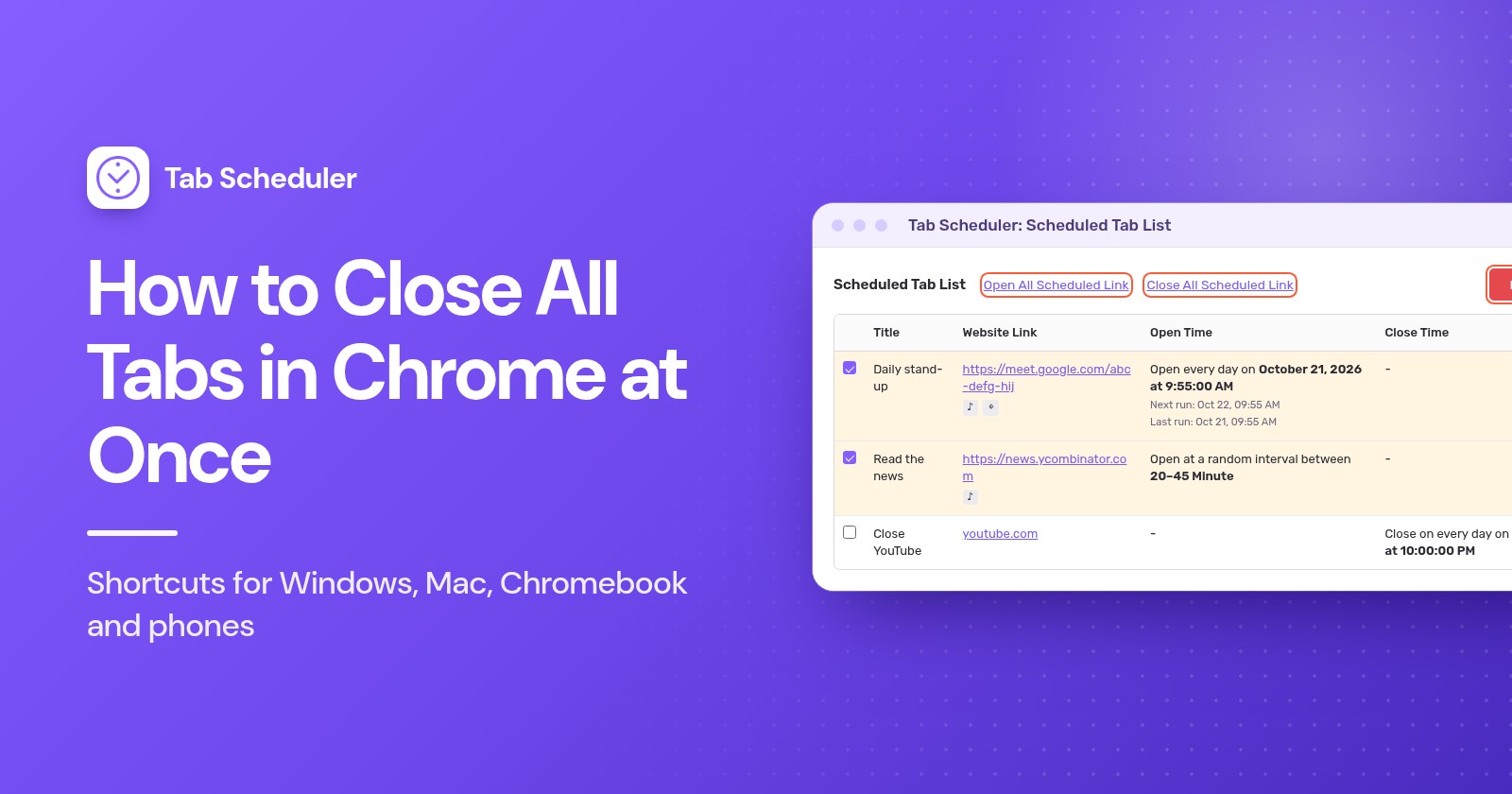
If you clear your tabs at the same time every day, an extension can do it for you on a computer. Tab Scheduler, a free extension that opens and closes tabs on a schedule, closes every tab at the time you choose when its link is only *:
- Install Tab Scheduler from the Chrome Web Store, click its icon in the toolbar and choose Settings.
- In Website Link, enter
*. To close only one site's tabs, enter its address instead, such as youtube.com in the screenshot below. - Set Select Frequency to Every Day and Schedule Type to Close matching tabs.
- Set Close Time, for example 22:00, and click Save Schedule.
When the last tab in a window closes, the window closes too. To keep your pinned tabs, and with them the browser, tick Do not close pinned tabs under More options (see keeping pinned tabs open). Chrome must be running and the computer awake at that time, and the extension doesn't run on phones. The free plan includes up to 5 schedules. For warnings, delays and more, read how to automatically close tabs in Chrome and how * matches links.
Which method should you use?
| Method | Best for | What it closes | Limits |
|---|---|---|---|
| Ctrl+Shift+W (Mac: Command+Shift+W) | Clearing the window you're in | Every tab in the current window | Other windows stay open |
| Exit or Alt+F then X (Mac: Command+Q) | Closing everything on a computer | All windows and tabs | Quits Chrome; tabs may return if startup is set to Continue where you left off |
| Right-click, Close other tabs | Keeping one tab, or a few highlighted ones | Every other tab in that window | Pinned tabs stay open |
| Ctrl-click or Shift-click, then Close | Removing a handful of tabs | Only the highlighted tabs | One click per tab |
| Close group | Putting a project aside | The tabs in one group | The group stays saved until you delete it |
| Close all tabs (Android), Close All (iPhone) | Phones and tablets | All regular tabs | Incognito tabs are closed separately |
Tab Scheduler with a * link | Clearing tabs at the same time every day | Every tab at the time you set | Computer only; Chrome must be running and the computer awake |
Why didn't all my Chrome tabs close?
One of these is usually the reason:
- Other windows are still open. Ctrl+Shift+W only closes the window you're in. Use Exit (Mac: Command+Q) to close them all.
- Your tabs come back when Chrome starts. Chrome is set to Continue where you left off. In Settings > On startup, choose Open the New Tab page instead. Our guide to opening websites on startup also covers how to stop tabs opening on startup.
- Pinned tabs keep coming back. Chrome reopens the tabs you had pinned when it starts, even with the New Tab page setting. Right-click each one and choose Unpin before you quit.
- A tab group reappeared. Close group saves a group instead of deleting it, and Chrome on Android and iPhone can open tab groups from your other devices. Use Delete group to remove it everywhere, or on your phone turn off Automatically open tab groups from other devices under Settings > Tabs and tab groups.
- A page asks "Leave site?" The page has changes that may not be saved, and Chrome waits for you before it closes the tab or quits. Click Leave to close it anyway.
- A tab is frozen. Open the three-dot menu, choose More tools > Task manager, select the page and click End process.
- Incognito tabs are still open on your phone. They have their own list in the tab switcher. Close them there, as shown in the Android and iPhone steps above.
For most people, Ctrl+Shift+W or Close all tabs on a phone is all it takes, and Ctrl+Shift+T is the safety net. If you clear your tabs at the same time every day, set up a close schedule in Tab Scheduler.
Questions and answers
What is the shortcut to close all tabs in Chrome?
Ctrl+Shift+W closes every tab in the current Chrome window on Windows, Linux and Chromebook, and Command+Shift+W does the same on a Mac. To close every window at once, press Alt+F then X on Windows, or Command+Q on a Mac.
How do I close all tabs in Chrome except the one I'm on?
Right-click the tab you're on and choose Close other tabs. Chrome closes the rest of the tabs in that window, but pinned tabs stay open.
How do I close all Chrome windows at once?
On Windows, open the three-dot menu and choose Exit, or press Alt+F then X. On a Mac, press Command+Q. Ctrl+Shift+W only closes the window you are using.
How do I close all tabs in Chrome on my iPhone?
Open Chrome, tap Switch tabs at the bottom of the screen, then tap Close All at the bottom left. Incognito tabs are listed separately, so close them from the Incognito side of the tab switcher.
How do I close all tabs in Chrome on Android?
Tap Switch tabs next to the address bar, then tap More (three dots) and Close all tabs. If Chrome asks you to confirm, tap Close all tabs and groups.
How do I save all my Chrome tabs before closing them?
Press Ctrl+Shift+D (Command+Shift+D on a Mac) to bookmark every tab in the current window into a new folder. Later, right-click that folder and choose Open all to reopen them.
Can I get my tabs back after closing all of them?
Yes. Press Ctrl+Shift+T (Command+Shift+T on a Mac) right away, or open the History menu and choose Restore window under Recently closed. Incognito tabs can't be restored after you close all Incognito windows.
Can Chrome close all tabs automatically at a set time?
On a computer, the free Tab Scheduler extension can: create a Close matching tabs schedule with a Website Link of only * and a close time. Chrome must be running and the computer awake at that time, and it doesn't work on phones.