




































How to Automatically Close Tabs in Chrome
Close Chrome tabs at a set time, a set number of minutes after they open, or all at once, and see what Chrome does by itself on Android and iPhone.
To close tabs automatically in Chrome on a computer, add a free extension such as Tab Scheduler, because Chrome has no setting that closes tabs on a timer. Enter a website (or * for every tab), choose Close matching tabs and set a time. On Android, Chrome closes unused tabs by itself, but only after months.
- Install Tab Scheduler from the Chrome Web Store.
- Click the Tab Scheduler icon in the toolbar and choose Settings.
- Type the site in Website Link, for example
youtube.com. - In Select Frequency, choose Every Day. In Schedule Type, choose Close matching tabs.
- Set Close Time, for example 22:00 (10 PM), and click Save Schedule.
At 22:00 every open tab whose address contains youtube.com closes, including tabs you opened yourself. It works the same way in Microsoft Edge (Edge Add-ons), and the free plan runs up to 5 schedules with no sign-up. Chrome menu names in this guide were checked in Chrome 156 (November 2026), the phone steps follow Google's Chrome Help pages, and the extension steps match Tab Scheduler 2.0.13.
Does Chrome close tabs automatically on its own?
Not on a computer. Chrome on Windows and Mac can put unused tabs to sleep, but it doesn't close them. Only Chrome on Android closes old tabs by itself, after months.
Memory Saver frees memory, it doesn't close tabs
Memory Saver lives in Settings > Performance. When it's on, Chrome deactivates tabs you aren't using, and you choose how soon with Moderate, Balanced (recommended) or Maximum. The tabs stay in the tab strip and reload when you click them. Turn on Inactive tabs appearance to see which tabs are asleep, and add sites that must stay live to Always keep these sites active. Use it for a faster computer, not fewer tabs (Google's guide to Chrome's performance settings).
Start each session without yesterday's tabs
Quitting Chrome closes every tab. Whether they come back depends on Settings > On startup: Continue where you left off reopens them, while Open the New Tab page starts fresh. The other startup choices are covered in how to automatically open a website on startup.
How to close tabs automatically at a set time
Use a Tab Scheduler close schedule. At the time you pick, it closes every open tab that matches the Website Link, whether you opened it or a schedule did. The frequency decides the days:
- Every Day: the same Close Time each day.
- Every Week: tick days in Close on days, for example Monday to Friday at 9:00 to clear social media when work starts.
- One Time: one Close Date and Close Time, for example the last day of an online course.
- Every Month: one day of the month in Close on day.
Which tabs match depends on URL Filtering, which is ticked for you when you choose Close matching tabs. With it ticked, a tab matches when its address contains your link, so youtube.com also closes www.youtube.com/watch?v=abc. Untick it to close only the exact address. Prefer a full domain such as github.com over a single word, because a short word can match addresses on other sites.
To open the site first and close it later, choose Open, then close, as explained in how to open a website at a specific time. Every close option is listed on the close tabs on a schedule feature page.
How to auto close a tab after a set number of minutes
Choose Custom Minute and type the minutes in Close Minute. Each matching tab then closes that many minutes after it opened, so a 15-minute schedule for a news site gives every news tab 15 minutes.
- In Tab Scheduler Settings, type the site in Website Link.
- Choose Custom Minute in Select Frequency and Close matching tabs in Schedule Type.
- Type a number in Close Minute, for example 15, and click Save Schedule.
Every 5 Minute, Every 10 Minute and Every 30 Minute work the same way with a fixed number. Two things to know: the count starts when the tab opens, not when you last looked at it, and the 60-second warning isn't available with minute intervals. More examples are on the every few minutes page. For YouTube in particular, including timers on phones, read how to make YouTube turn off at a certain time.
How to close all tabs automatically
Enter only * in Website Link and choose Close matching tabs. At the close time every tab in every window closes, including the one you're working in.
A link of only * closes every tab whether URL Filtering is ticked or not, and when the last tab in a window closes, the window closes too. Every Day at 23:00 gives you a clean browser each morning. Two options keep part of it open:
- Do not close pinned tabs skips pinned tabs, so your email or calendar stays, and the browser stays open with them. To pin a tab in Chrome, right-click it and choose Pin.
- Do not close active tab skips the tab shown in each window at that moment. With a repeating schedule, a skipped tab can close at a later run. A One Time schedule doesn't try again.
The * also works inside a link. With URL Filtering unticked, *example.com* matches any address that contains example.com, www.example.com/* matches addresses that start with it, and *example.com/page matches addresses that end with it. See matching links with * for more patterns. To close everything right now by hand, use the shortcuts in how to close all tabs in Chrome at once.
How to close incognito tabs automatically
On a computer, incognito tabs stay open until you close them, and your Incognito session ends when you close all Incognito windows. To close them at a set time, first let Tab Scheduler into incognito:
- Click the three-dot menu at the top right of Chrome and choose Extensions > Manage extensions.
- Find Tab Scheduler with auto open and close, click Details and turn on Allow in Incognito (Google's steps for managing extensions).
Then create the schedule:
- In Tab Scheduler Settings, enter
*in Website Link for every private tab, or one site such asexample.com. - Choose Every Day in Select Frequency, Close matching tabs in Schedule Type and a Close Time, for example 23:00.
- Under More options, tick Close only incognito tabs and click Save Schedule.
Your normal tabs stay open, even on the same site. Without the tick, a close schedule closes matching tabs in both normal and incognito windows once incognito access is on. If the box unticks itself, Allow in Incognito is still off. Details are on the close only incognito tabs page.
On Android, Chrome doesn't close Incognito tabs on a timer. Lock Incognito windows when you leave Chrome (under Settings > Privacy and security) hides them but keeps them open. To close them, open the tab switcher, tap Incognito tabs, then More > Close all Incognito tabs.
How to get a warning before a tab closes
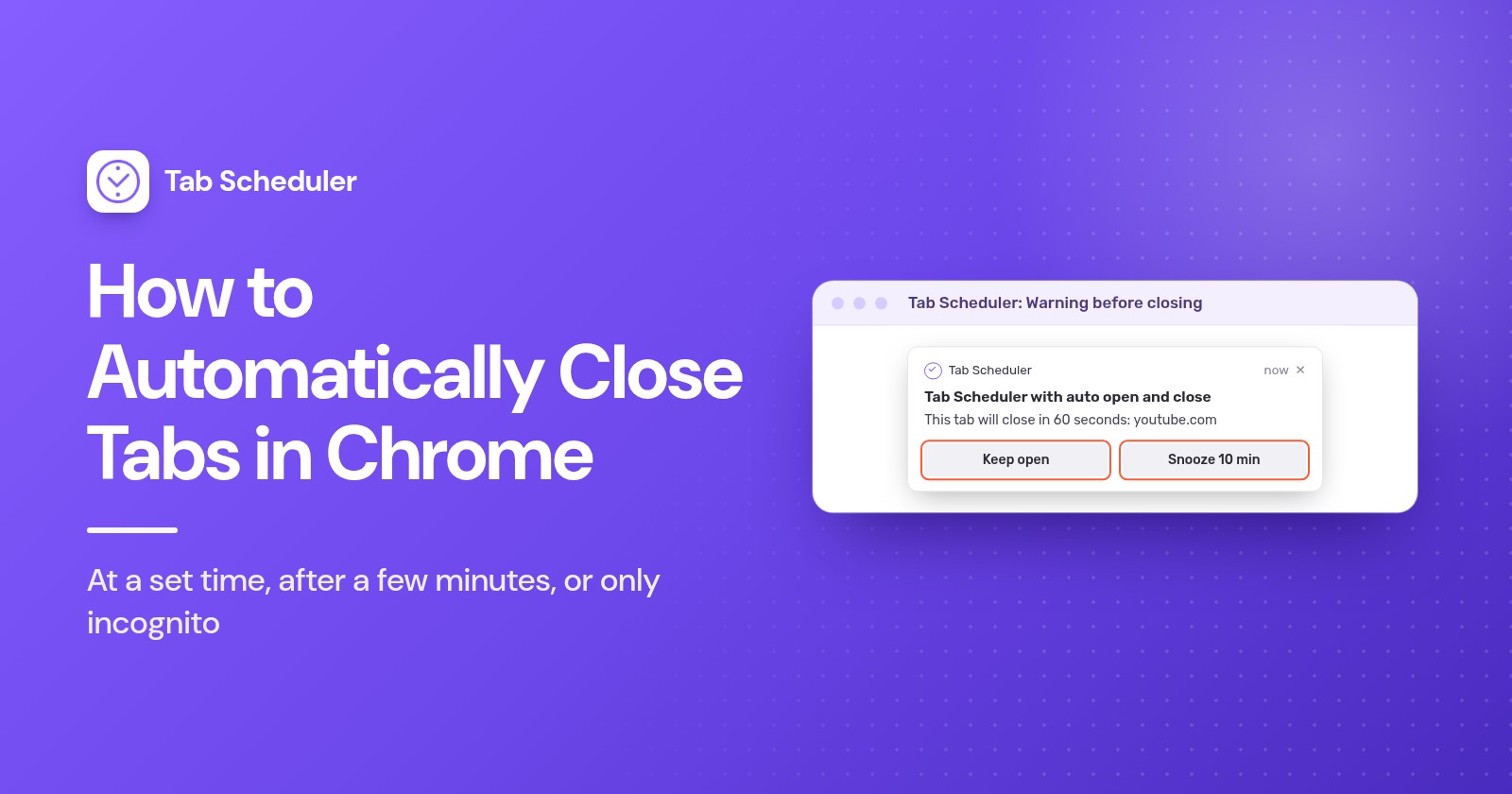
Tick Warn me 60 seconds before closing under More options. One minute before the close time, a notification says "This tab will close in 60 seconds" and offers two buttons.
- Keep open cancels this close. A repeating schedule still runs at its next time.
- Snooze 10 min closes the tabs 10 minutes later, with no second warning.
- Doing nothing, or dismissing the notification, lets the tabs close on time.
You get one warning per schedule, not one per tab. The option only appears for fixed times (One Time, Every Hour, Every Day, Every Week, Every Month, Every Year), and notifications must be allowed for your browser in your computer's settings. See the warning before closing for the details.
How to auto close unused tabs in Chrome
Chrome on a computer can't, and neither can Tab Scheduler: it closes tabs at a time you set or a set number of minutes after they open, never based on how long you've ignored them. For "close any tab I haven't looked at in an hour", install an extension built for inactivity-based closing, and check that it skips pinned tabs and keeps a list of closed tabs to reopen.
If you only want the memory back, use Memory Saver. If you want fewer tabs on a predictable rhythm, a nightly * schedule with Do not close pinned tabs does the job.
How to automatically close tabs on Android and iPhone
Chrome on phones doesn't run extensions, so Tab Scheduler isn't available there. Chrome's own inactive tabs feature is the only automatic option, and it works in weeks, not minutes.
Chrome on Android
Tabs you haven't used for 14 days or more move to the Inactive tabs section, and Chrome closes tabs in that section automatically after 6 months. To change when tabs move:
- Open Chrome and tap More > Settings.
- Under Advanced, tap Tabs and tab groups > Move to inactive section.
- Pick a time period, or tap Never to keep every tab in the main tab switcher.
To stop Chrome from closing inactive tabs after 6 months, turn off Automatically close inactive items in those settings. To clear them now, tap Switch tabs > Inactive tabs, then Close all inactive tabs > Close all. These steps follow Google's help page for tabs on Android.
Chrome on iPhone and iPad
Chrome moves tabs you haven't used in a while to Inactive Tabs. Google's help page describes hiding these tabs, not closing them, so the closing is up to you:
- To change or stop the hiding, tap More > Settings > Tabs and tab groups > Inactive, then pick a time period or Never move.
- To close them, tap Switch tabs > Inactive tabs, then Close all inactive > Close all. Undo brings them back straight away.
Source: Google's help page for tabs on iPhone and iPad.
Which method should you use?
| Method | Best for | Needs | Limits |
|---|---|---|---|
| Tab Scheduler at a set time | Closing a site, or every tab, at a set time on chosen days | The free extension in Chrome or Edge on a computer | Browser running, computer awake; missed closes are skipped |
| Tab Scheduler with Custom Minute | Limiting how long a site stays open | The same extension | Counts from when each tab opens; no 60-second warning |
| Tab Scheduler, incognito only | Clearing private tabs at night | Allow in Incognito turned on | Computer only |
| Inactivity-based extension | Closing tabs you haven't looked at for a while | A different extension | No fixed time; can close a tab you meant to keep |
| Memory Saver | Freeing memory without losing tabs | Nothing, it's built into Chrome | Doesn't close anything |
| Inactive tabs on Android | Phones full of old tabs | Chrome on Android | Closes after 6 months in the Inactive section; no set time |
| Inactive Tabs on iPhone and iPad | Hiding old tabs | Chrome on iPhone or iPad | Hides tabs; you close them yourself |
Why didn't my tabs close automatically?
Start with the computer: Tab Scheduler only runs while the browser is open and the computer is awake. Then check the other causes:
- The computer was asleep or the browser was closed. A close that was due then is skipped, because Run on browser start if missed at scheduled time only catches up on opening. Turn on Power Mode (keep computer awake) from the three-dot menu at the top of Tab Scheduler Settings; it keeps the computer awake only while a schedule is waiting to run. Other ways are in how to keep your computer awake.
- The address didn't match. With URL Filtering unticked, the tab's address must be the same as your link. Tick it, or use
*example.com*. - The wrong tabs closed. With URL Filtering on, a short link matches too much. Use the full domain.
- A pinned or active tab stayed open. That's Do not close pinned tabs or Do not close active tab doing its job.
- Incognito tabs stayed open. Allow in Incognito is off for Tab Scheduler.
- No warning appeared. The schedule uses a minute interval, or notifications are blocked for the browser in your computer's settings.
- Nothing runs at all. The schedule's switch is off in the Scheduled Tab List, or all schedules are paused (Alt+Shift+P pauses and resumes them). On the free plan, a sixth schedule can't be saved.
Chrome can free memory on a computer and clear out months-old tabs on Android, but closing tabs at a time you choose takes an extension. Tab Scheduler, a free extension that opens and closes tabs on a schedule, covers set times, set minutes, every tab and incognito-only closing, with a 60-second warning when you want one.
Questions and answers
Does Chrome automatically close tabs?
On a computer, no. Memory Saver deactivates tabs you aren't using to free memory, but they stay in the tab strip. Chrome on Android moves tabs unused for 14 days to an Inactive tabs section and closes them there after 6 months.
Does Chrome Memory Saver close tabs?
No. Memory Saver frees the memory of tabs you aren't using, and each one reloads when you click it. To actually close tabs at a set time you need an extension such as Tab Scheduler.
Can I make Chrome close a tab after a certain amount of time?
Yes, with an extension. In Tab Scheduler, choose Close matching tabs, pick Custom Minute and type the minutes in Close Minute, and each matching tab closes that many minutes after it opened.
Do Chrome incognito tabs close automatically?
No. Incognito tabs stay open until you close them, and the Incognito session ends when every Incognito window is closed. Tab Scheduler can close them at a set time once Allow in Incognito is on for the extension and Close only incognito tabs is ticked.
Why does Chrome keep closing my tabs?
On Android, Chrome closes tabs that have spent 6 months in the Inactive tabs section unless you turn off Automatically close inactive items. On a computer, a common cause is an extension that closes tabs on a schedule or after inactivity, so check your extensions in Manage extensions.
How do I stop Chrome from closing inactive tabs on Android?
Turn off Automatically close inactive items in Chrome's inactive tabs settings, which you reach through More, Settings, Tabs and tab groups. To keep tabs out of the Inactive section altogether, set Move to inactive section to Never.
Can I close tabs automatically on my phone with an extension?
No. Chrome on Android and iPhone doesn't run extensions, so Tab Scheduler only works in Chrome and Edge on a computer. On phones, Chrome's inactive tabs settings are the only automatic option.
Is Tab Scheduler free?
Yes. The free plan runs up to 5 schedules with no sign-up and no time limit. Premium removes the limit for $2.99 a month or $29.99 a year.