






























How to Automatically Open a Website on Startup (Chrome, Edge, Windows and Mac)
Open a website automatically when your browser or computer starts: startup pages in Chrome, Edge and Firefox, the Windows Startup folder, Mac Login Items, and different sites on different days.
You can automatically open a website on startup in two ways. To open it when your browser starts, add it under On startup in Chrome's settings (Edge and Firefox have the same option). To open it when your computer starts, put a shortcut to the site in the Windows Startup folder or in your Mac's Login Items.
- Open Chrome, click the three-dot menu at the top right and choose Settings.
- Click On startup on the left.
- Select Open a specific page or set of pages.
- Click Add a new page, paste the website address and click Add.
- Quit Chrome completely and open it again. The site opens in its own tab.
Chrome menu names in this guide were checked in Chrome 156 and Firefox labels in Firefox 159 (November 2026). Windows and Mac steps follow Microsoft's and Apple's current support pages.
The browser's setting opens the same pages every time. If you want different sites on different days, such as work tools only Monday to Friday, see On Browser Open in the section on different websites on different days below. If you want a site at a set time of day rather than at startup, read how to open a website at a specific time.
How to make Chrome open a specific page on startup
Use the On startup setting from the steps above. Chrome opens every page on that list, each in its own tab, every time it starts.
- To open several tabs on startup, click Add a new page once for each site. Or open the tabs you want and click Use current pages to save them all at once.
- To change the list later, click the three-dot button next to a page and choose Edit or Remove.
- The other two choices under On startup are Continue where you left off, which reopens the tabs from your last session, and Open the New Tab page, which starts with an empty tab.
- The homepage is a different setting. Under Appearance, Show Home button only decides what the Home button opens. For pages that open at launch, use On startup.
On a Mac, closing Chrome's last window doesn't quit Chrome. Press Command+Q before you test, so the next launch is a real startup. The same steps work in Chrome on a Chromebook, but on a work or school Chromebook the administrator controls the startup page and you can't change it. Google's help page Set your homepage and startup page describes the same options.
How to open a website on startup in Microsoft Edge
Edge has the same setting under When Edge starts.
- Click Settings and more (the three dots at the top right) and choose Settings.
- Click Start, home, and new tabs.
- Under When Edge starts, choose Open these pages.
- Click Add a new page, enter the address and click Add.
To save every tab you have open as a startup page, click Use all open tabs instead.
How to open specific pages on startup in Firefox
In Firefox, the pages that open at startup are your homepage. In Firefox 159 the settings are on one page:
- Click the menu button (three lines) and choose Settings.
- Click Home and startup.
- Under Homepage, set New windows to Custom URLs…, then click Choose a specific site.
- Type the address and click Add address. Repeat for each site. To use the tabs you have open, click Current opened pages next to Replace with.
- Under Startup, check that Open previous windows and tabs is off. When it is on, Firefox restores your last session instead of opening your homepage.
On Windows, the same Startup section has Open Firefox automatically when your computer starts up. Turn it on and your homepage opens when you sign in, without the Startup folder.
How to open a website automatically when your computer starts (Windows 11 and 10)
Put a shortcut to the website in your Startup folder. Windows opens everything in that folder when you sign in, and a website shortcut opens in your default browser.
- Press Windows key + R, type
shell:startupand press Enter. The Startup folder opens. - Right-click an empty part of the folder and choose New > Shortcut.
- Paste the full address, starting with
https://, and click Next. - Type a name, such as Team calendar, and click Finish.
Restart or sign out and back in to test it. The steps are the same in Windows 10. Instead of steps 2 to 4, you can also drag the small icon at the left of the browser's address bar into the folder. To stop it, delete the shortcut. Microsoft explains the Startup folder in Add an app to run automatically at startup in Windows.
Want the site in a particular browser rather than your default one? Copy that browser's shortcut into the Startup folder instead, and set its startup page as shown above. The browser then opens with your site each time you sign in.
Open a website as an app when you sign in (Chrome)
Chrome can also start an installed web app when you sign in to Windows, Mac or Linux. This suits a site you use like an app, such as a chat or a dashboard.
- Open the site in Chrome, click the three-dot menu and choose Cast, save, and share > Install page as app…, then click Install.
- Go to
chrome://apps. - Right-click the app and select Launch at startup.
To undo it, right-click the app again and deselect Launch at startup. Google covers this in Use Progressive Web Apps.
How to open a website on startup on a Mac
Save the website as a link file and add it to your Login Items. macOS opens it in your default browser when you log in.
- Open the site in Safari or Chrome and drag the address, or the small icon to its left, onto the desktop. This creates a
.weblocfile. - Move the file to a folder you keep, such as Documents, so it doesn't get deleted by accident.
- Choose Apple menu > System Settings, then click General in the sidebar.
- Click Login Items & Extensions. You may need to scroll down.
- Click the Add button (+) below the list, select the
.weblocfile and click Add.
To stop it, select the item and click the Remove button (-). To skip all login items once, hold Shift while you click Log In. Apple's guide Open items automatically when you log in on Mac has the details. You can add Chrome itself the same way, and it opens with its On startup pages.
How to open different websites on different days
Use a schedule that is tied to the browser start and to the day of the week. Browser startup pages, the Startup folder and Login Items open the same sites every time, so they can't do "work tools Monday to Friday, news at the weekend".
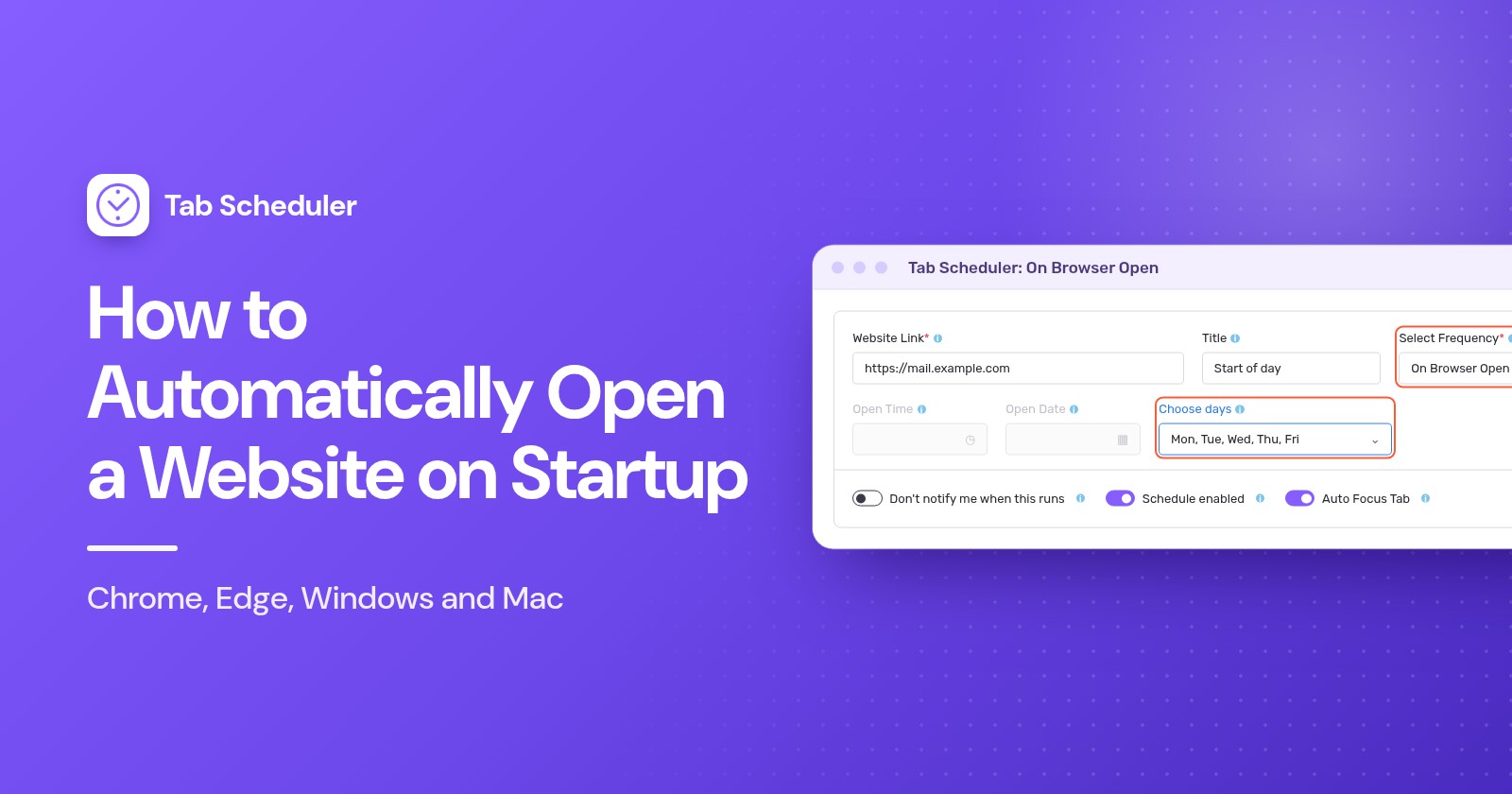
Tab Scheduler, a free extension for Chrome and Edge, has a frequency called On Browser Open, which opens a website when the browser starts on the days you tick:
- Install Tab Scheduler from the Chrome Web Store or from Edge Add-ons.
- Click the Tab Scheduler icon in the toolbar and choose Settings.
- Enter the address in Website Link and, if you like, a Title.
- In Select Frequency, choose On Browser Open. Schedule Type switches to Open a website.
- In the On Browser Open field, click Choose days and tick Monday to Friday. Check All selects every day.
- Click Save Schedule.
Make one schedule per website. For example, your mail and your team board for Monday to Friday, and a news site for Saturday and Sunday. Under More options you can tick Open URL In New Window to give a site a browser window of its own. The free plan runs up to 5 schedules with no sign-up; Premium removes the limit.
Know the limits before you rely on it:
- It runs when the browser starts, not when you open another window while the browser is already running.
- It only opens websites. To close a site again later in the day, see how to automatically close tabs in Chrome.
- It can't start a closed browser. To get your weekday sites when the computer starts, also add the browser to the Startup folder or Login Items as shown above.
- It doesn't run on phones, because Chrome on Android and iPhone doesn't run extensions.
If you need a site at a clock time, such as 9:00 on weekdays, use a daily or weekly schedule with an open time instead.
Which method should you use?
Pick the method by when the site should open and whether it changes from day to day.
| Method | Best for | Needs | Limits |
|---|---|---|---|
| Browser startup pages (Chrome, Edge, Firefox) | The same sites every time you open the browser | Nothing extra | Same list every day; only when the browser starts |
| Windows Startup folder shortcut | A site as soon as you sign in to Windows | Windows 11 or 10 | Opens in the default browser at every sign-in, every day |
| Mac Login Items with a .webloc file | A site as soon as you log in to your Mac | A saved .webloc file | Same site at every login, every day |
| Chrome web app with Launch at startup | A site you use like an app, at sign-in | The site installed as an app | Set up per site; every sign-in, every day |
| Tab Scheduler On Browser Open | Different sites on different days of the week | The free extension in Chrome or Edge | Only when the browser starts; opens only; 5 schedules free |
How to stop tabs opening on startup
Undo the setting that opens them. Check the browser first, then your computer's startup items.
- Chrome: go to Settings > On startup and choose Open the New Tab page, or remove pages from the list.
- Edge: under When Edge starts, choose Open the new tab page.
- Firefox: set New windows back to Firefox Home (Default) and turn off Open previous windows and tabs.
- Windows: delete the shortcut from
shell:startup, and turn the browser off in Settings > Apps > Startup. If the browser reopens by itself after every restart, turn off Automatically save my restartable apps in Settings > Accounts > Sign-in options. - Mac: select the item in Login Items & Extensions and click Remove.
- Tab Scheduler: switch the schedule off in the Scheduled Tab List, or delete it.
If Chrome opens pages you never added, or your startup page keeps changing, Google says you may have unwanted software. Remove extensions you don't recognize, then use Settings > Reset settings > Restore settings to their original defaults. Your bookmarks and saved passwords are kept.
Why didn't my website open on startup?
Usually the browser didn't really start, or another setting took over. Check these causes in order:
- The browser was still running. Startup pages need a real start. On a Mac, quit with Command+Q. Tab Scheduler's On Browser Open also doesn't run if Chrome kept running in the background after you closed its windows, which Continue running background apps when Google Chrome is closed (under Settings > System) can do.
- Another startup choice wins. In Chrome, Continue where you left off reopens your last session instead of your list. In Firefox, Open previous windows and tabs skips the homepage.
- The setting is managed. On a work or school computer, your administrator may set the startup pages for you.
- The shortcut is in the wrong place. It must be in the folder that
shell:startupopens, and it should open the site when you double-click it. - The
.weblocfile was deleted. Login Items opens the file itself, so keep it in a folder you don't clean out, and add it again if it's gone. - The Tab Scheduler schedule didn't run. Check that today is ticked under Choose days, that Schedule enabled is on, and that all schedules aren't paused (Alt+Shift+P pauses and resumes them).
- The site opens twice. It is probably set in two places, for example in the browser's startup pages and in a Startup folder shortcut. Keep it in one.
For the same sites every day, the browser's own startup setting is enough, and the Startup folder or Login Items extend it to the moment you sign in. When your startup tabs should change with the day of the week, Tab Scheduler, a free extension that opens and closes tabs on a schedule, handles it with one schedule per site.
Questions and answers
How do I make Chrome open automatically when my computer starts?
On Windows, press Windows key + R, type shell:startup and put a Chrome shortcut in the folder that opens. On a Mac, add Google Chrome in System Settings > General > Login Items & Extensions. Chrome then starts with the pages set under On startup.
How do I open multiple tabs on startup in Chrome?
Go to Settings > On startup, choose Open a specific page or set of pages and click Add a new page once for each site. To save all the tabs you have open right now, click Use current pages instead.
How do I make Chrome open my previous tabs on startup?
Go to Settings > On startup and choose Continue where you left off. Chrome then reopens the tabs from your last session instead of a fixed list of pages.
Why does Chrome open random pages on startup?
Usually a page was added to the On startup list, or an extension or unwanted program changed it. Check the list, remove extensions you don't recognize, and if the pages keep coming back, use Settings > Reset settings > Restore settings to their original defaults.
Why does Microsoft Edge open automatically when Windows starts?
Edge may be turned on in Settings > Apps > Startup, or Windows may be reopening it because Automatically save my restartable apps is turned on in Settings > Accounts > Sign-in options. Turn off whichever applies.
Is the Chrome homepage the same as the startup page?
No. The homepage is the page the Home button opens, set under Appearance > Show Home button. The pages that open when Chrome starts are set separately under On startup.
Can I open a website on startup only on weekdays?
Not with the browser's startup pages, the Windows Startup folder or Mac Login Items, because they run every time. Tab Scheduler's On Browser Open option opens a site when Chrome or Edge starts, only on the days you tick, and it is free for up to 5 schedules.
How do I open a website at a certain time instead of at startup?
Use a schedule rather than a startup setting. Tab Scheduler can open a site at a set time every day, on chosen weekdays or once, as long as the browser is running and the computer is awake. Windows Task Scheduler can also open a website at a set time.