








































How to Open a Website at a Specific Time (Windows, Mac and Chrome)
Open any website at a set time with Windows Task Scheduler, Mac Shortcuts or Calendar, or a free Chrome and Edge extension. Includes meeting links and fixes.
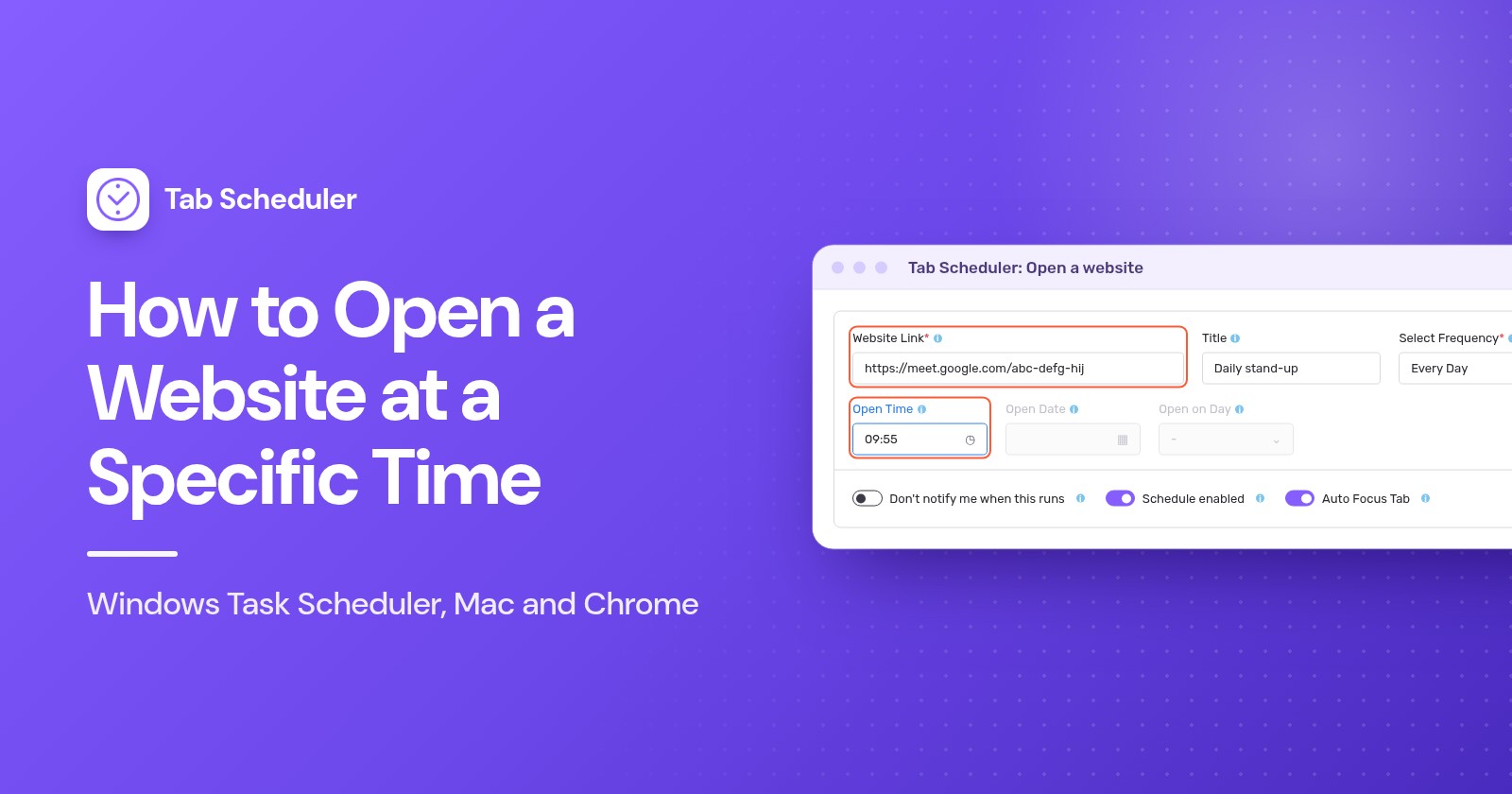
To open a website at a specific time on Windows, create a Task Scheduler task that starts your browser with the page address. On a Mac, use a Shortcuts Time of Day automation or a Calendar alert that opens a saved link. In Chrome or Edge, an extension like Tab Scheduler opens it once or on repeat.
- Search the Start menu for Task Scheduler and open it.
- Click Create Basic Task, type a name and click Next.
- Pick One time, Daily, Weekly or Monthly, then set the date and time.
- Choose Start a program, click Browse and select your browser, such as
chrome.exe. - Paste the full web address into Add arguments (optional), then click Next and Finish.
The steps are the same on Windows 11 and Windows 10. Whichever method you use, the computer has to be on and awake at that time. The Windows steps follow Microsoft's Task Scheduler documentation, the Mac steps follow Apple's current user guides, and Chrome labels were checked in Chrome 156 (November 2026).
Which method should you use?
Use what your computer already has for a simple daily page, and an extension when you want weekday schedules, meeting links that close again, or a reminder instead of a tab.
| Method | Best for | Needs | Limits |
|---|---|---|---|
| Windows Task Scheduler | A page at a set time on a Windows PC, even when the browser is closed | Windows 11 or 10 and the location of your browser | Windows only. Opens the page but never closes it. You must be signed in to see the window. |
| Shortcuts automation (Mac) | A daily or weekday page on a Mac without installing anything | macOS 26 or later | Apple's guide says Open URLs opens links in Safari. The Mac must be awake. |
| Calendar alert (Mac) | One-off pages, or pages tied to events you already keep in Calendar | A saved link file on your Mac | Each time needs a calendar event. The Mac must be awake. |
| Tab Scheduler (Chrome, Edge) | Repeating schedules, chosen weekdays, meeting links, opening and later closing a page | The free extension, with the browser running | Can't start a closed browser or wake a sleeping computer. Free plan: up to 5 schedules. |
How to make Task Scheduler open a website on Windows
Task Scheduler is built into Windows 11 and 10. It starts your browser with a web address at the time you choose, so it works even when the browser is closed. Follow the quick steps above, with these details:
- Create Basic Task is in the Actions pane on the right. Give the task a clear name, such as "Open sales dashboard".
- For Weekly, tick the days as well, such as Monday to Friday.
- Next to Program/script, click Browse and pick the browser. Chrome is usually
C:\Program Files\Google\Chrome\Application\chrome.exeand EdgeC:\Program Files (x86)\Microsoft\Edge\Application\msedge.exe. - In Add arguments (optional), paste the full address, including
https://. - To test the task, select it in Task Scheduler Library and click Run in the Actions pane.
Task Scheduler only opens the page. It can't close that tab later or remind you instead of opening it.
Leave "Run only when user is logged on" selected
A new task uses Run only when user is logged on on the General tab, and that is what you want. Microsoft's documentation on task security explains that with Run whether user is logged on or not a task doesn't run interactively, so the browser never appears on your screen. The catch: the task runs only while you're signed in to Windows.
Three settings worth changing
Tick Open the Properties dialog for this task when I click Finish on the last page of the wizard, or later select the task and click Properties. Then check:
- Conditions tab: untick Start the task only if the computer is on AC power, which is ticked by default, or a laptop on battery skips the task.
- Conditions tab: tick Wake the computer to run this task if the PC might be asleep. Your power plan must allow wake timers, and Microsoft notes the screen may stay off until you come back, so test it once.
- Settings tab: tick Run task as soon as possible after a scheduled start is missed. If the PC was off at that time, Windows runs the task later, by default after a ten-minute wait.
How to open a website at a specific time on a Mac
A Mac has no Task Scheduler app, but Shortcuts, Calendar and launchd can all open a page at a set time.
Use a Shortcuts automation (macOS 26 and later)
- Open the Shortcuts app and create a new shortcut.
- Add the Open URLs action and enter your web address.
- Click Edit, then Automation, choose Time of Day and set the time and days.
- To let it run without asking, click Edit, click the Info button, click Privacy and turn on Allow Running When Locked.
These steps follow Apple's guide to Shortcuts automations on Mac. Apple notes the automation then runs without notifying you.
Use a Calendar alert that opens a link
- Save the page as a link file: in Safari, drag a link to the page onto your desktop. Double-clicking that file opens the page.
- In Calendar, create an event at the time you want. Set it to repeat if you need it every day or week.
- Double-click the event, click its time, click the Alert pop-up menu, choose Custom, then Open file, and pick your link file. Set the alert to go off at the start of the event.
Apple's Calendar guide lists Open file next to Message with sound and Email as custom alerts.
For Terminal users: a launchd job
Apple recommends launchd over cron for timed jobs. Put a property list in ~/Library/LaunchAgents whose ProgramArguments run /usr/bin/open with your address (this opens it in your default browser) and whose StartCalendarInterval sets the Hour and Minute. It loads when you next log in. Per Apple, a job missed during sleep runs when the Mac wakes; one missed while it was off waits for the next scheduled time.
How to schedule a website to open in Chrome or Edge
A scheduling extension opens pages from inside the browser, works the same on Windows and Mac, and can close the page again later. Tab Scheduler is free for up to 5 schedules, with no sign-up. It runs only while the browser is running and the computer is awake: it can't start a closed browser or wake a sleeping computer.
Add it from the Chrome Web Store or Edge Add-ons, then:
- Click the Tab Scheduler icon in the toolbar and choose Settings.
- Type the address in Website Link and, if you like, a Title.
- Choose how often in Select Frequency.
- Leave Schedule Type on Open a website.
- Set Open Time, plus Open Date for One Time, Open on days for Every Week or Open on Day for Every Month.
- Click Save Schedule. The schedule appears in the Scheduled Tab List with its Next run.
This example opens a weekly report at 09:00 from Monday to Friday:
Open it once, every day, on weekdays or monthly
- One Time: a date and time, such as a webinar or a ticket sale. Afterwards the list shows Time Expired.
- Every Day: needs only the time.
- Every Week: open Choose days in Open on days and tick the days. All the days share one time, so make a second schedule for a different time.
- Every Month: pick a day from 1 to 31 in Open on Day. In shorter months it runs on the last day.
Times follow your computer's clock. The guide to daily, weekly, monthly and yearly schedules covers Every Year too.
Open it, then close it again
Set Schedule Type to Open, then close and fill in both Open Time and Close Time. For an evening class on Tuesday and Thursday, choose Every Week, tick both days in Open on days and Close on days, and set 18:55 and 20:05. At the close time every tab that matches the link closes, including copies you opened yourself. See how Open, then close works.
Catch up if the browser was closed
Under More options, tick Run on browser start if missed at scheduled time. If the browser was closed or the computer was off at the scheduled time, the page opens when you start the browser again the same day. It works with One Time, Every Day, Every Week, Every Month and Every Year, and only for opening. More in catching up on missed schedules.
Get a reminder instead of a new tab
Tick Just remind me (don't open the tab) and, at the time, you get a "Scheduled now" notification with Open now and Skip. Nothing opens unless you click Open now. It works with any frequency in Chrome and Edge. See how Just remind me works.
How to open a meeting link automatically (Google Meet, Zoom, Teams)
Schedule the meeting link to open a few minutes before the start. The meeting page is waiting for you, but Tab Scheduler and Task Scheduler only open it; they can't click a join button for you.
For a daily stand-up, paste the Meet link into Website Link, choose Every Day and set Open Time to 09:55:
What happens when the link opens:
- Google Meet: the meeting page opens and you click Join now, or Ask to join if the host has to let you in.
- Zoom: the browser asks to open the Zoom app, and Chrome offers Always allow zoom.us to open links of this type in the associated app. Once allowed, Zoom says its app opens and directs you to the meeting. Because that can happen before you're back at your desk, check your camera and microphone settings in the Zoom app first.
- Microsoft Teams: the page offers Join on the Teams app or Continue on this browser, then you click Join now.
With Open, then close, the meeting tab closes at Close Time, which ends a browser call that is still running. Tick Warn me 60 seconds before closing to get Keep open and Snooze 10 min if the meeting runs over. On a Mac, Calendar's own event notification also offers Options > Join for online meetings.
Why didn't my website open at the scheduled time?
Usually the computer was asleep, the browser was closed, or Windows ran the task where you couldn't see it. Check these causes:
- The computer was asleep. No method runs during sleep. Task Scheduler can try to wake the PC, and launchd runs the job on wake. Tab Scheduler may run late when the computer wakes, or skip the run; its Power Mode keeps the computer awake while schedules are waiting. For other options, see how to keep your computer awake without touching the mouse.
- The browser was closed. An extension runs only inside a running browser. Tick Run on browser start if missed at scheduled time, or have the browser open when you sign in, as explained in how to automatically open a website on startup.
- The task runs when you're logged off. A task set to Run whether user is logged on or not runs without a visible window. Switch it to Run only when user is logged on. If you were signed out, the PC was off or the laptop was on battery, change the settings listed above.
- Wrong program or address. Program/script must point to the browser itself, and the full address, with
https://, goes in Add arguments (optional). - Notifications are blocked. Reminders from Just remind me (don't open the tab) are browser notifications. On Windows 11, go to Settings > System > Notifications and turn your browser on under Notifications from apps and other senders; on a Mac, use System Settings > Notifications. Do not disturb or a Focus can also hide them.
- The schedule is off or paused. Check its switch in the Scheduled Tab List. Alt+Shift+P pauses or resumes all schedules, and a past One Time schedule shows Time Expired.
For a single page now and then, Task Scheduler or a Calendar alert is enough. If you want pages on chosen weekdays, meeting links that close afterwards, or a reminder instead of a tab, Tab Scheduler, a free extension that opens and closes tabs on a schedule, does it from inside Chrome or Edge.
Questions and answers
Can Chrome open a website at a certain time by itself?
No. Chrome has no built-in scheduler, and its On startup setting only opens pages when Chrome starts. To open a page at a set time, use Windows Task Scheduler, a Mac Shortcuts automation or Calendar alert, or an extension such as Tab Scheduler.
Will Task Scheduler open a website if Chrome is closed?
Yes. Task Scheduler starts the browser program itself with the web address, so the browser does not need to be open. You do need to be signed in to Windows, and the PC must be on or able to wake from sleep.
Why does my scheduled task not run when I am logged off?
A task set to Run only when user is logged on does not run while you are signed out, and a task set to Run whether user is logged on or not runs in the background without a visible window, so no browser appears. For websites, keep the first option, stay signed in, and tick Run task as soon as possible after a scheduled start is missed to catch up a missed run.
How do I open a website at a specific time on a Mac?
On macOS 26 or later, make a shortcut with the Open URLs action and give it a Time of Day automation in the Shortcuts app. On any recent macOS you can also create a Calendar event whose custom alert uses Open file with a saved link file, or set up a launchd job if you are comfortable with Terminal.
Can I automatically join a Google Meet or Zoom meeting at a set time?
You can open the meeting link automatically a few minutes early, but you still click Join now in Google Meet and Microsoft Teams. For Zoom, the browser asks to open the Zoom app, and if you have allowed that permanently, Zoom says the app opens and directs you to the meeting.
Will a scheduled website open if my computer is asleep?
Not while it sleeps. Windows Task Scheduler can wake the PC if you tick Wake the computer to run this task and wake timers are allowed. Tab Scheduler can't wake a computer, but its free Power Mode keeps the computer from sleeping while schedules are waiting to run.
Is Tab Scheduler free?
Yes. The free plan runs up to 5 schedules with no sign-up and no time limit. Premium removes the limit for $2.99 a month or $29.99 a year.
How do I open several websites at the same time every morning?
In Tab Scheduler, create one schedule for each website, choose Every Day or Every Week, and give them all the same Open Time. The free plan covers up to 5 schedules.