








































How to Keep Your Computer Awake Without Touching the Mouse
Keep your computer awake without touching the mouse: Windows 11 and Mac settings, PowerToys Awake, caffeinate, Chromebook, lid closed and work PCs.
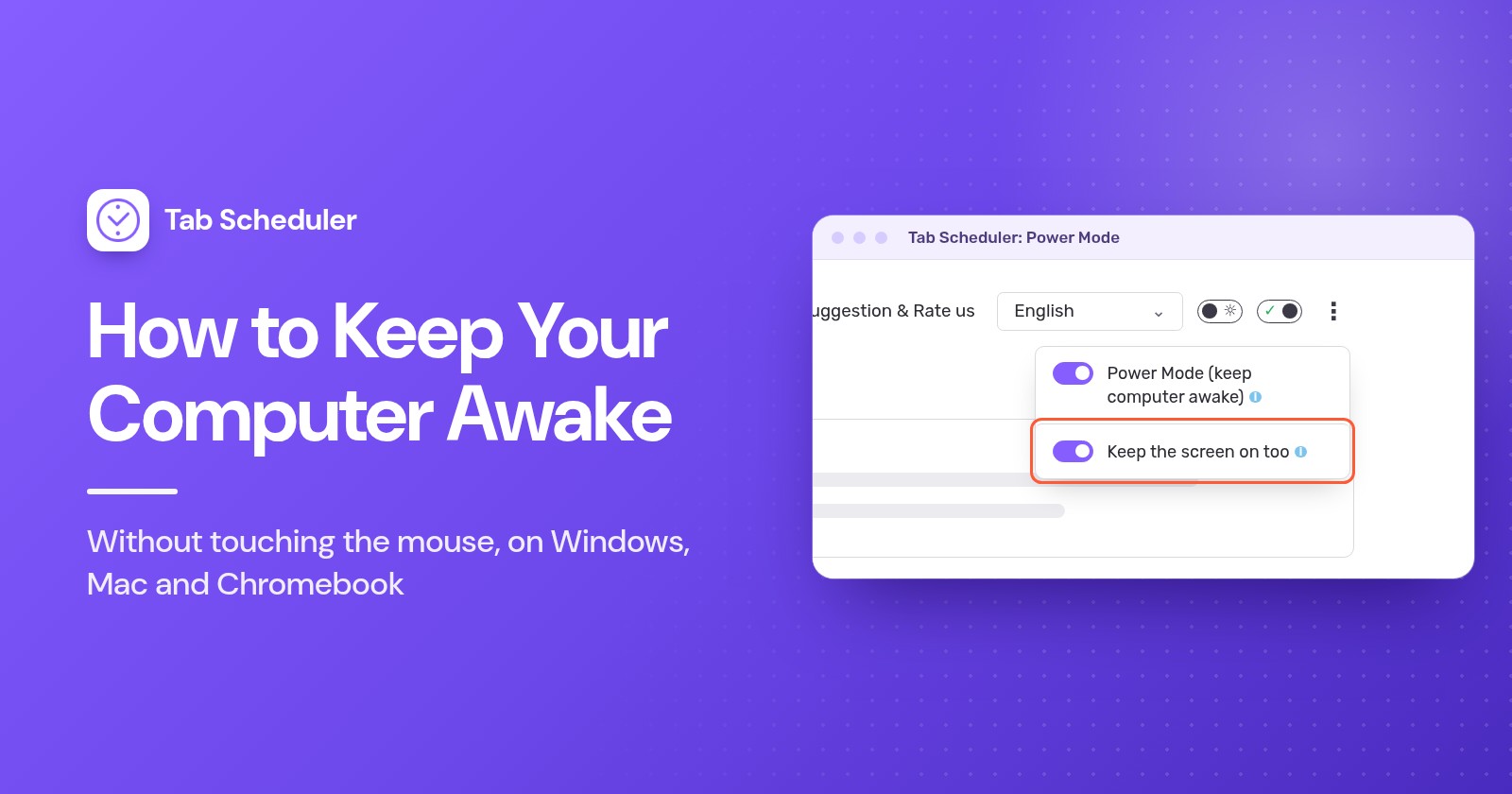
To keep your computer awake without touching the mouse, change the sleep setting to Never, or switch on a keep-awake tool that asks the system to stay awake: PowerToys Awake on Windows, the built-in caffeinate command on a Mac, or a keep-awake browser extension. None of them fakes mouse movement like a jiggler does.
- On Windows 11, select Start > Settings > System > Power & battery.
- Open Screen, sleep, & hibernate timeouts.
- Next to Make my device sleep after, choose Never under Plugged in. Change the battery value too only if you must.
- If the screen has to stay on as well, set Turn my screen off after to a longer time or Never.
- When you are done, set both back to a few minutes so the computer can rest again.
That keeps the PC awake until you change it back. For a few hours only, a keep-awake tool is better because it switches itself off. All steps below were checked in November 2026 against Microsoft, Apple and Google help pages and Microsoft's PowerToys documentation.
Which method should you use?
Use the sleep settings for a computer that should never sleep on its own, and a keep-awake tool for one long task.
| Method | Best for | Needs | Limits |
|---|---|---|---|
| Windows sleep settings | A PC that should stay awake every day | Windows 11 or 10 | Stays on until you undo it; work PCs may lock it |
| PowerToys Awake | A few hours, or until a set time | Free Microsoft app, per-user install possible | Windows only; doesn't stop lid or manual sleep |
| Mac sleep settings | A Mac that should never sleep on its own | System Settings | MacBook option works only on the power adapter |
caffeinate | One download, render or upload on a Mac | Terminal (built in) | Works only while the command runs |
| Chromebook power settings | Any Chromebook you manage yourself | Settings | School and work Chromebooks may lock it |
| Keep-awake browser extension | Work computers where you can't install apps | Chrome or Edge, extensions allowed | Works only while the browser is open |
| Tab Scheduler Power Mode | Making scheduled websites open on time | Tab Scheduler in Chrome or Edge | Only while a schedule is set to run |
| Mouse jiggler | Not recommended | USB gadget or app | Fakes activity; can break work rules |
How to stop your computer from sleeping in Windows 11
The steps at the top are the simplest fix. These details decide whether they work:
- Plugged in and battery are separate. A laptop that still sleeps on battery usually had only the plugged-in value changed.
- Screen off is not sleep. Turn my screen off after only darkens the display. Downloads keep running.
- Lock it when you walk away. Press Windows key + L. Locking doesn't put the PC to sleep, so your task keeps going.
- Grayed-out options or values that change back mean your organization manages them.
On Windows 10, the same settings are under Start > Settings > System > Power & sleep. Microsoft's page on power settings in Windows 11 explains the other options there.
How to keep your PC awake with PowerToys Awake
PowerToys Awake is a free Microsoft tool that keeps Windows awake without changing your power settings. When you turn it off, the normal sleep timers come back, so there is nothing to undo. It runs on Windows 11 and on Windows 10 version 2004 or newer.
- Install Microsoft PowerToys from the Microsoft Store or from the PowerToys releases page on GitHub.
- Open PowerToys Settings, select Awake and turn on Enable Awake.
- Choose a mode: Keep awake indefinitely, Keep awake for a time interval (for example 2 hours) or Keep awake until expiration (a date and time).
- Turn on Keep screen on only if the display must stay lit. Otherwise the screen can still turn off while the PC stays awake.
- To switch modes later, right-click the Awake icon in the system tray.
When you lock the PC, Awake keeps it awake but lets the screen turn off, even with Keep screen on. Microsoft says Awake is meant for when you are at your computer or in a private place, so lock the screen in a shared office. The PowerToys Awake documentation also lists command-line options, such as a time limit.
How to keep your Mac awake
On a Mac, change the sleep settings for good, or run the built-in caffeinate command for one task. Neither needs an extra app.
Change the sleep settings on a Mac
- Choose Apple menu > System Settings, then click Lock Screen in the sidebar.
- Set Turn display off on power adapter when inactive to a longer time or Never. On a MacBook, also set Turn display off on battery when inactive if you need it.
- On a MacBook, click Battery, click Options and turn on Prevent automatic sleeping on power adapter when the display is off.
- On a desktop Mac, click Energy and turn on Prevent automatic sleeping when the display is off.
The MacBook option works only while the power adapter is connected. Apple's guide to sleep and wake settings on Mac covers the other options.
Use the caffeinate command
caffeinate comes with macOS. It keeps the Mac awake for as long as it runs and doesn't ask for an admin password.
- Open Terminal: click Spotlight in the menu bar, type Terminal and click it. It is also in the Utilities folder inside Applications.
- Type
caffeinateand press Return. The Mac won't sleep on its own, but the display can still turn off. - To keep the display on too, run
caffeinate -d -iinstead. To stop after a set time, give it seconds:caffeinate -t 3600lasts one hour. - Press Control+C in that Terminal window to stop it.
caffeinate stops idle sleep only, so closing a MacBook's lid still puts it to sleep. If you prefer clicking to typing, keep-awake menu bar apps on the Mac App Store do the same job.
How to keep a Chromebook awake
A Chromebook has one setting that keeps the screen on, and the Chromebook awake, while you are not using it.
- Select the time at the bottom right, then select Settings.
- On the left, select System preferences, then Power.
- Next to While inactive and plugged in and While inactive and on battery, select Keep display on.
- To keep it awake with the lid closed, turn off Sleep when lid is closed.
On a school or work Chromebook you may not be able to change these. Google's Chromebook help page says to ask your administrator.
How to keep a laptop awake with the lid closed
Keep-awake tools only stop idle sleep, so closing the lid still puts most laptops to sleep. You have to change what the lid does.
- Windows 11 and 10: open Control Panel, select Hardware and Sound > Power Options > Choose what closing the lid does, set When I close the lid to Do nothing under Plugged in, then select Save changes. Recent Windows 11 updates also show this option in Settings > System > Power & battery.
- Mac: a MacBook stays awake with the lid closed only when it is connected to power and an external display, with an external keyboard and mouse.
- Chromebook: turn off Sleep when lid is closed, as above.
Know the risks. A running laptop makes heat with the lid open or shut, so never leave one awake in a bag or under a blanket. Apple, for one, says to use a Mac laptop on a stable surface with good ventilation and never under bedding. An awake laptop also drains its battery and isn't locked, so lock it first. Set the lid back to Sleep before you travel with it.
How to keep a work computer awake without admin rights
Most methods above work without admin rights. Try them in this order. If one is blocked, ask your IT team rather than working around it.
- The sleep settings. On many work PCs and Macs you can still change your own sleep time. If the options are grayed out or switch back, a policy sets them.
- PowerToys, per-user version. On the PowerToys releases page, the installer with "User" in its name installs PowerToys for your account only, in your own AppData folder, so it normally doesn't need an admin password. IT can still block per-user installs or turn Awake off.
caffeinateon a Mac. It is built in and runs from your own account.- A keep-awake browser extension. Some Chrome and Edge extensions use the browser's keep-awake permission to ask the system, or also the display, to stay awake. They work only while the browser is running, and your company may limit which extensions you can add.
- A keep-awake web page. If you can't install anything, some web pages keep the screen on with the browser's Screen Wake Lock, but only while that tab is visible.
Why a mouse jiggler is a poor choice
A mouse jiggler, a USB gadget or app that nudges the pointer every few seconds, does keep a computer awake. But it works by faking you, and that is the problem at work.
- It makes you look active. Chat and monitoring tools read the fake movement as you at your desk. In 2024, Wells Fargo dismissed more than a dozen employees after reviewing allegations of "simulation of keyboard activity creating impression of active work", according to its filings with the US regulator FINRA.
- It can break company rules. Many employers restrict unknown USB devices and unapproved software on work computers.
- It leaves your session open. It stops the computer locking itself, so anyone walking past can use it.
- It gets in the way. The pointer can move while you work.
The tools above ask the operating system to stay awake and don't pretend you are there. That also means they won't keep you "Available" in chat apps: Microsoft Teams, for example, sets you to Away when you lock the computer or it goes idle.
How to keep your computer awake so scheduled websites still open
If you schedule websites to open while you are away, sleep is the main thing that stops them. A sleeping computer pauses the browser, so a page set for 9:55 opens late or not at all. Our guide on how to open a website at a specific time covers the schedules themselves.
Tab Scheduler, a free extension that opens and closes tabs on a schedule, has a setting for this case in Chrome and Edge:
- Click the Tab Scheduler icon in the browser toolbar and choose Settings.
- Click the menu button with three dots at the top of the page.
- Switch on Power Mode (keep computer awake).
Power Mode keeps the computer awake only while at least one of your schedules is set to run. When nothing is waiting, the computer follows its normal sleep settings again, so it is not a tool for keeping a PC awake all day; use the methods above for that. By default the screen can still turn off, and tabs still open while it is dark.
If someone needs to see the page, for example on a wall dashboard, also switch on Keep the screen on too. It uses more battery. Both options are free on every plan.
Power Mode needs the browser to be running, and it can't stop sleep when you close the lid, choose Sleep yourself or shut down. If the computer was off or the browser closed at the scheduled time, Run on browser start if missed at scheduled time opens a missed one-time, daily, weekly, monthly or yearly tab when the browser starts again the same day. Get Tab Scheduler from the Chrome Web Store or Edge Add-ons.
Why does my computer still go to sleep?
Usually something other than the idle timer sends it to sleep, or the keep-awake tool has stopped:
- You changed the wrong power value. Windows and Mac keep separate values for battery and the power adapter. Set the one you are using.
- The tool isn't running. PowerToys Awake works only while it is enabled and you are signed in.
caffeinateworks only while the command runs. A browser extension works only while the browser is open. - You closed the lid or chose Sleep. Keep-awake tools stop idle sleep, not sleep you start yourself. Change the lid action as shown above.
- The screen goes dark but the computer is awake. That is the default for PowerToys Awake, plain
caffeinateand Power Mode. Turn on Keep screen on, usecaffeinate -d -i, or switch on Keep the screen on too. - Your organization manages power settings. Then only IT can change them.
For most people, a sleep timer set to Never, or a timed keep-awake tool, is all it takes, with no jiggler and no admin password. If you need the computer awake because a website should open at a set time, Tab Scheduler's Power Mode keeps it awake only for as long as your schedules need.
Questions and answers
How do I keep my computer from sleeping without admin rights?
Start with your own sleep settings, which many work computers still let you change. On Windows, the per-user PowerToys installer adds Awake for your account only, and on a Mac the built-in caffeinate command needs no password. If IT has locked these, ask them instead of using a workaround.
How do I keep my Mac awake without touching the mouse?
Open Terminal and run caffeinate, which keeps the Mac from sleeping until you press Control+C, or caffeinate -t 3600 to stop by itself after an hour. For a permanent change, open System Settings, set the Lock Screen display-off times longer, and on a MacBook turn on the Battery option that prevents automatic sleeping on the power adapter.
How do I keep my screen on in Windows 11?
Go to Settings, System, Power & battery, Screen, sleep, & hibernate timeouts and set "Turn my screen off after" to Never or a longer time. For a temporary fix, turn on Keep screen on in PowerToys Awake, which keeps the display on until you lock the PC.
How do I keep my laptop awake with the lid closed?
On Windows, open Control Panel, go to Power Options, choose what closing the lid does and set it to Do nothing when plugged in. A MacBook stays awake with the lid closed only when it is on power with an external display, keyboard and mouse, and a Chromebook needs Sleep when lid is closed turned off. Keep the laptop out of bags and off soft surfaces while it runs.
Is there a Chrome extension to keep my screen awake?
Yes. Several Chrome and Edge extensions use the browser's keep-awake permission to stop the computer, or the display too, from sleeping while the browser is open. They can't stop sleep when you close the lid or choose Sleep yourself.
How do I keep my computer awake while downloading?
Use a timed keep-awake tool so the computer goes back to normal afterwards: PowerToys Awake set to Keep awake for a time interval on Windows, or caffeinate -t with a number of seconds on a Mac. The screen can turn off during the download without stopping it, as long as the computer itself doesn't sleep.
Can my employer tell if I use a mouse jiggler?
It may. Many companies use monitoring tools and restrict unknown USB devices, and in 2024 Wells Fargo dismissed more than a dozen staff after reviewing allegations that they simulated keyboard activity. Check your company's policy before using one.
Does Tab Scheduler keep my computer awake all the time?
No. Its Power Mode keeps the computer awake only while at least one schedule is set to run, so scheduled tabs open on time, and then your normal sleep settings apply again. It is free, needs the browser running, and can't stop sleep when you close the lid.